
Release notes - v 5.3.0
A new photo editor for findings
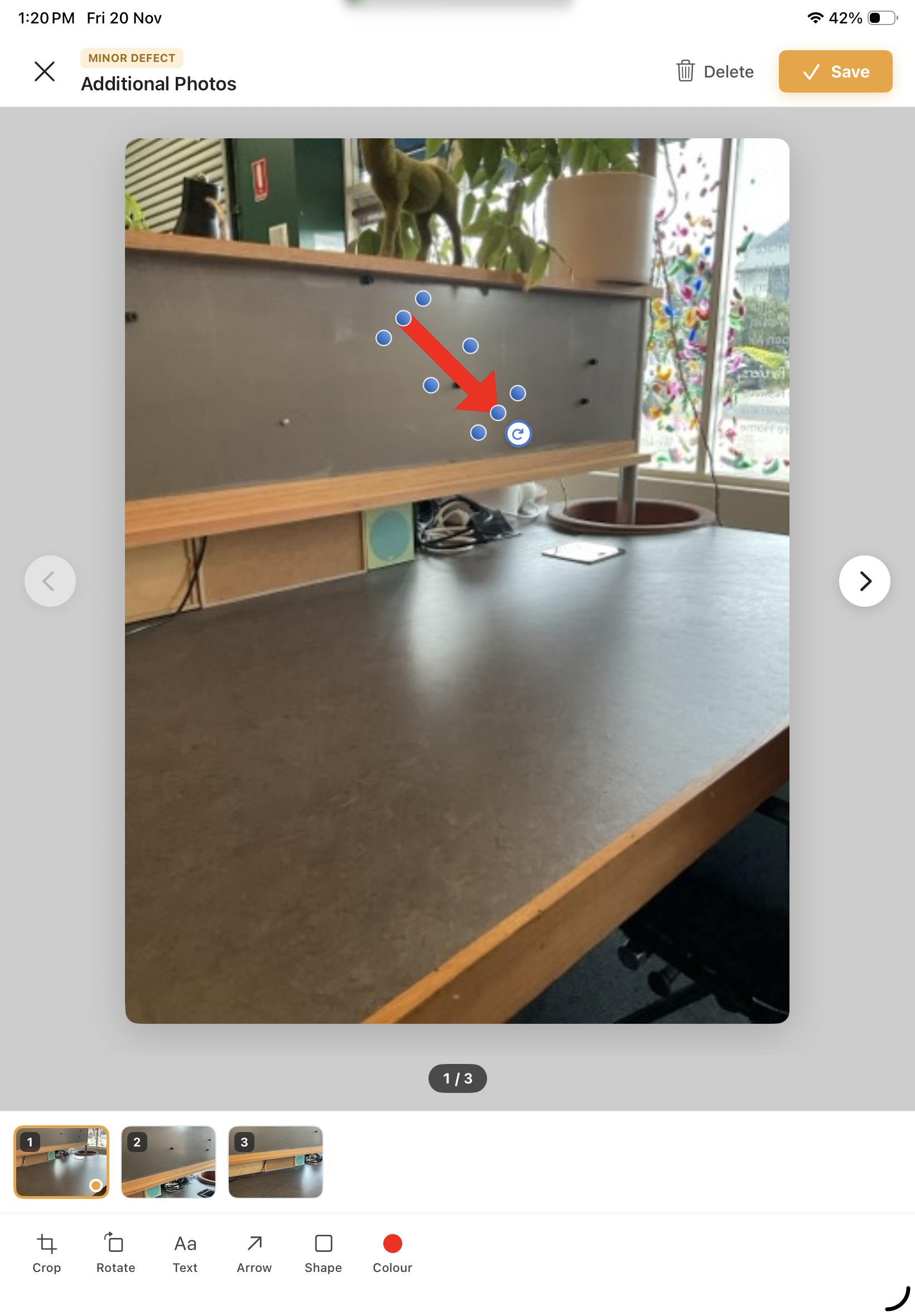
Tapping a photo on a finding now opens a new full-screen editor that shows every photo on that finding.
Swipe between photos. You can also use the arrows or tap a thumbnail along the bottom. Photos you've changed are marked in the thumbnail strip.
Edit all of them, save once. Crop, rotate, and add text, arrows and shapes to as many photos as you like, then tap Save once. Only the photos you changed are saved.
Rotate arrows to any angle. Arrows now have a rotate handle just past the tip. Drag it to point the arrow anywhere. It snaps to 45° angles to keep lines neat.
Text boxes grow to fit. Text annotations expand as you type, so nothing gets cut off.
No lost work. If you tap Close with unsaved changes, you'll be asked whether to keep editing or discard them.
Delete a photo straight from the editor.
The editor shows the finding's title, location and severity at the top, so you always know which finding you're working on.
After taking photos with the camera, the editor opens on your newest photo.
Smarter AI statement and summary generator
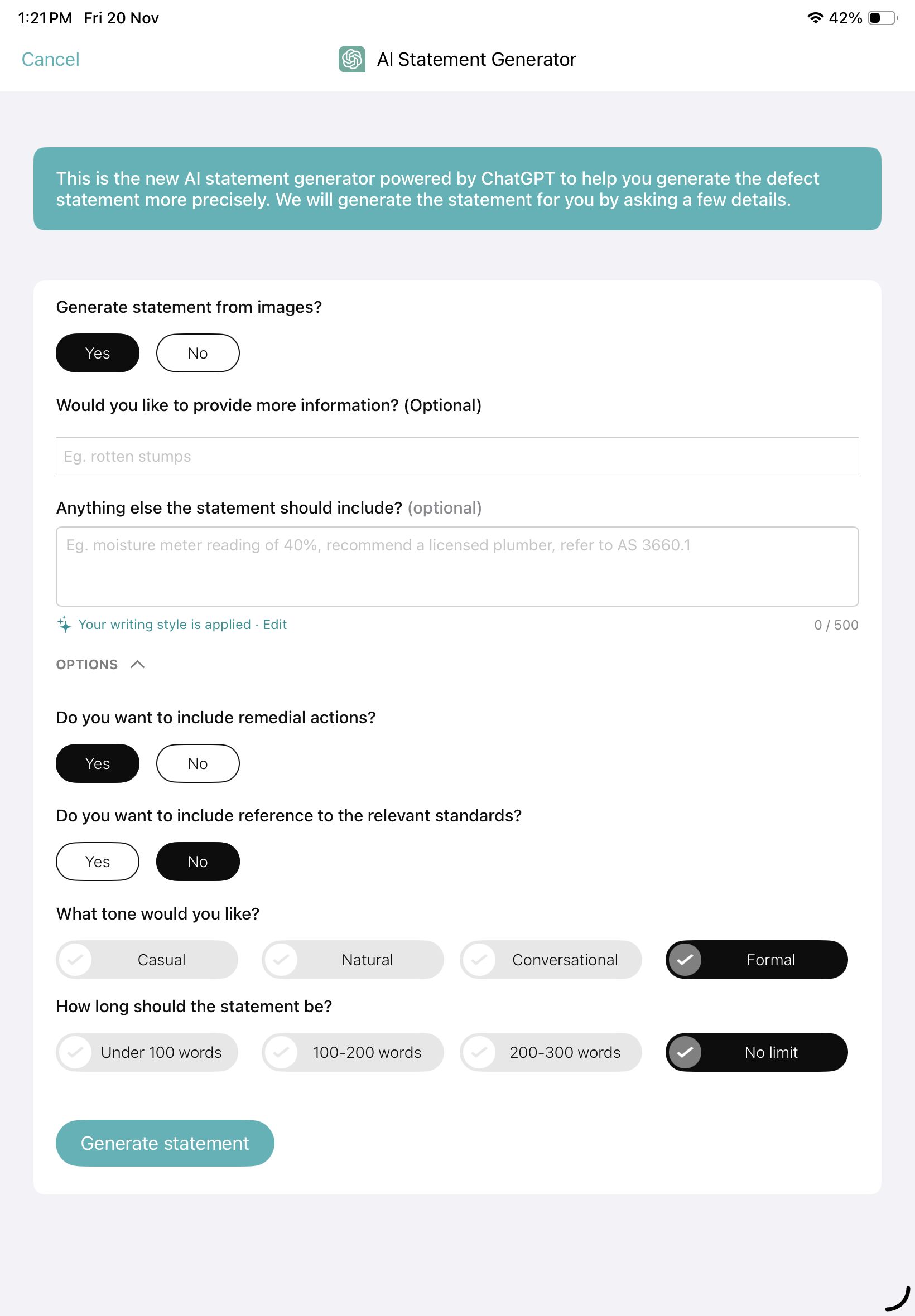
Add your own instructions. The finding statement and summary generators have a new box: "Anything else the statement should include?" Use it to give the AI the details that matter for that finding, such as:
"Moisture meter reading of 40%, recommend a licensed plumber, refer to AS 3660.1"
"Focus on the structural issues, mention the property is over 50 years old"
The AI learns your writing style. Every inspector writes differently. Hello Inspections now builds a writing style for you from the reports you publish, so AI-generated statements and summaries sound more like you and need less editing.
There are separate styles for finding statements and report summaries.
To view or edit your style, go to Settings › Preferences › AI writing style, or tap Set up your writing style in the generator. Write it in your own words, for example: "Use Australian spelling. Start with what was observed, then the likely cause, then a recommendation."
Anything you write yourself is kept when the style is updated from new reports.
To stop learning from new reports, turn off Update from my reports. To start again from scratch, tap Reset writing style.
Text that was mostly written by the AI isn't used to learn your style, so it keeps reflecting how you write.
Fixes and improvements
Cropped and rotated photos now update on your other devices. Previously they could keep showing the original photo.
Text annotations on photos now fit inside their box in the PDF report instead of spilling below it.
Improved stability. We've fixed the most common crashes, including:
opening a report that hasn't finished downloading to your device yet (the app now waits for it to download)
editing findings while the report's photos are still downloading
using Next and Previous in the property and summary selection lists on iPhone
creating the PDF report
sending a report email when some client or inspection details are blank